
The File Panel in Chat
Every chat has its own file panel. It holds everything that belongs to the chat: your uploads, the agent's results, and any extra documents the agent looked at. Everything stays in one place.
Open and hide the panel
As soon as the chat has at least one upload or result, a folder icon ("Show files") appears in the top-right corner of the header.
In a wide window, the "Files" list is open by default and sits to the right of the chat. Click the folder icon to hide it ("Hide files") or show it again.
In a narrow window, click the folder icon to open the list. It opens on top of the chat and closes again when you open a file, click outside it, or press Esc.
New uploads and results appear in the list automatically. You don't need to reload.
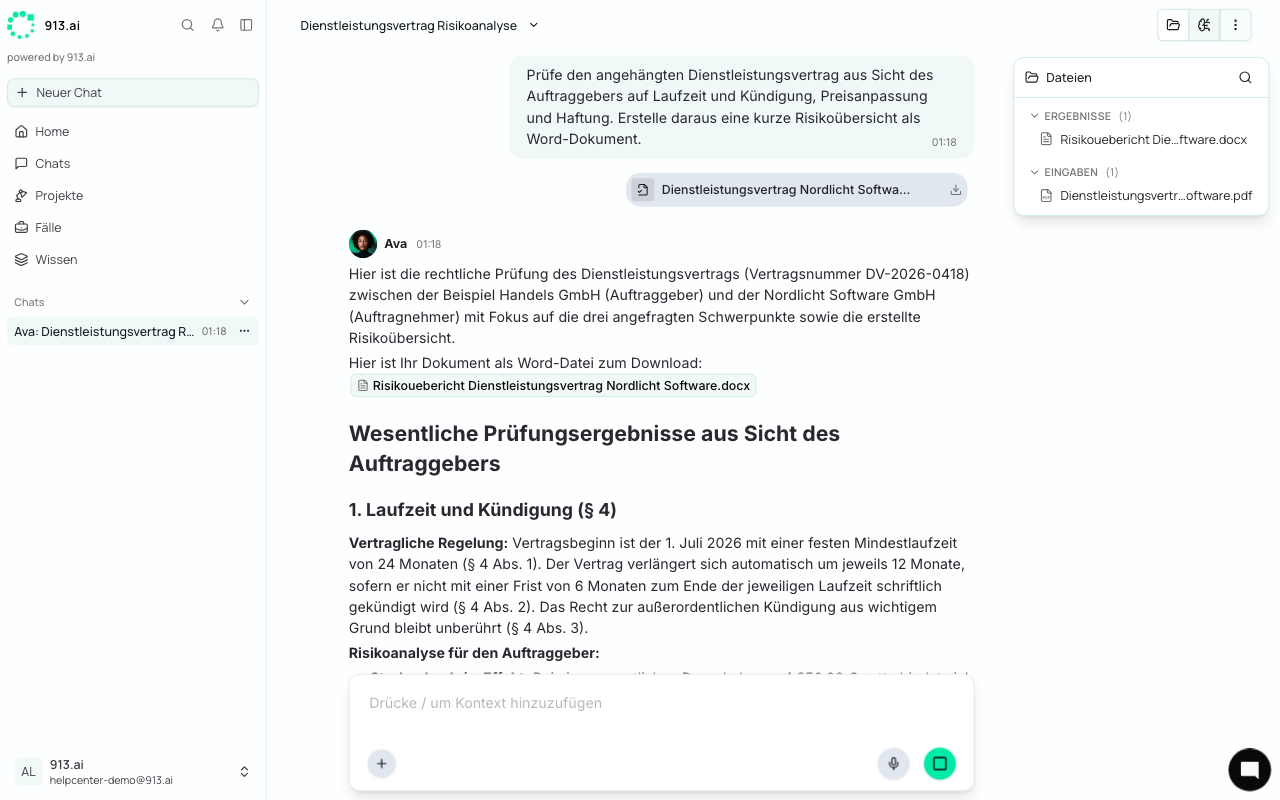
What you find where
The panel has four sections:
Section | Contents |
|---|---|
Results | Everything the agent created for you, such as letters, reports, or analyses. The newest is at the top. |
Inputs | Your uploads in this chat. |
Knowledge | Documents from your Knowledge that the agent read in this chat, grouped by Knowledge folder. |
Project | Project chats only: the project's files. |
"Knowledge" and "Project" start collapsed. Each section shows how many files it contains.
Good to know: The agent only reads your uploads. It never changes them. It always saves its results as a new file under "Results", so when it revises something, the previous version is kept (see Commenting and Requesting Revisions).
Find files quickly
If there are many files, use the magnifying glass at the top of the list ("Filter files"):
Click the magnifying glass.
Type part of the file name, for example
Contractor.xlsx.Only matching files are shown. Collapsed sections open automatically.
Click the X or press Esc to clear the filter.
Open and download files
Open: Click the file name. The file opens to the right of the chat (see Viewing Files).
Download: Hover over the file and click the download icon. The file is saved straight away, including PDFs.
Long file names are shortened in the middle so you can still see the file extension. Hover over a name to see it in full.
In group chats and projects
Group chats: All members see the same file panel. If you turn a personal chat into a group chat, its files come with it.
Project chats: Besides the chat files, you'll find all of the project's files under "Project". The agent can read them without you uploading them again.