
Commenting and Requesting Revisions
You don't have to describe in detail which part you mean. Just select it in the file and add what you'd like changed. The agent receives the selected passages with your next message and gives you a revised version as a new file.
This works in Word documents, PDFs, Markdown files, and spreadsheets, including files that are read-only for you.
Comment on text (Word, PDF, Markdown)
Open the file in the chat.
Select the passage with your mouse, for example a paragraph, a sentence, or a single word.
A Comment button appears next to your selection. Click it.
In the field "What should be changed here?", describe what you'd like, for example:
"Please make this sound friendlier."
"This is missing the four-week deadline."
"Delete this."
Click Add to message (or press Ctrl/⌘ + Enter). Click Cancel or press Esc to discard the comment.
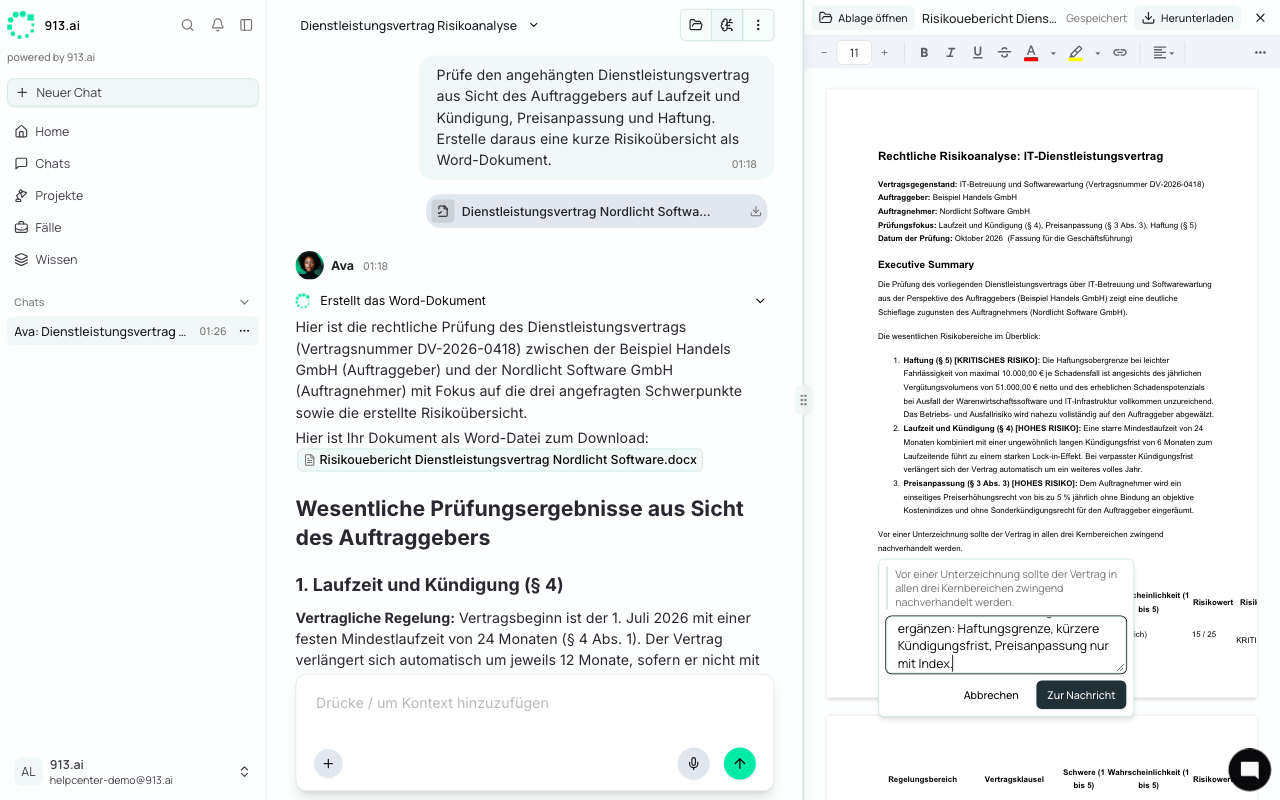
Comment on cells (Excel, CSV)
Several cells: Select the range. The Comment button appears shortly after.
A single cell, row, or column: Right-click the cell, or the row or column header, and choose Comment.
The comment automatically includes the cell range (for example C3:C4) and its values. You only need to add what should change, for example:
"In February there were another €1,000 in costs, and in March another €1,500."
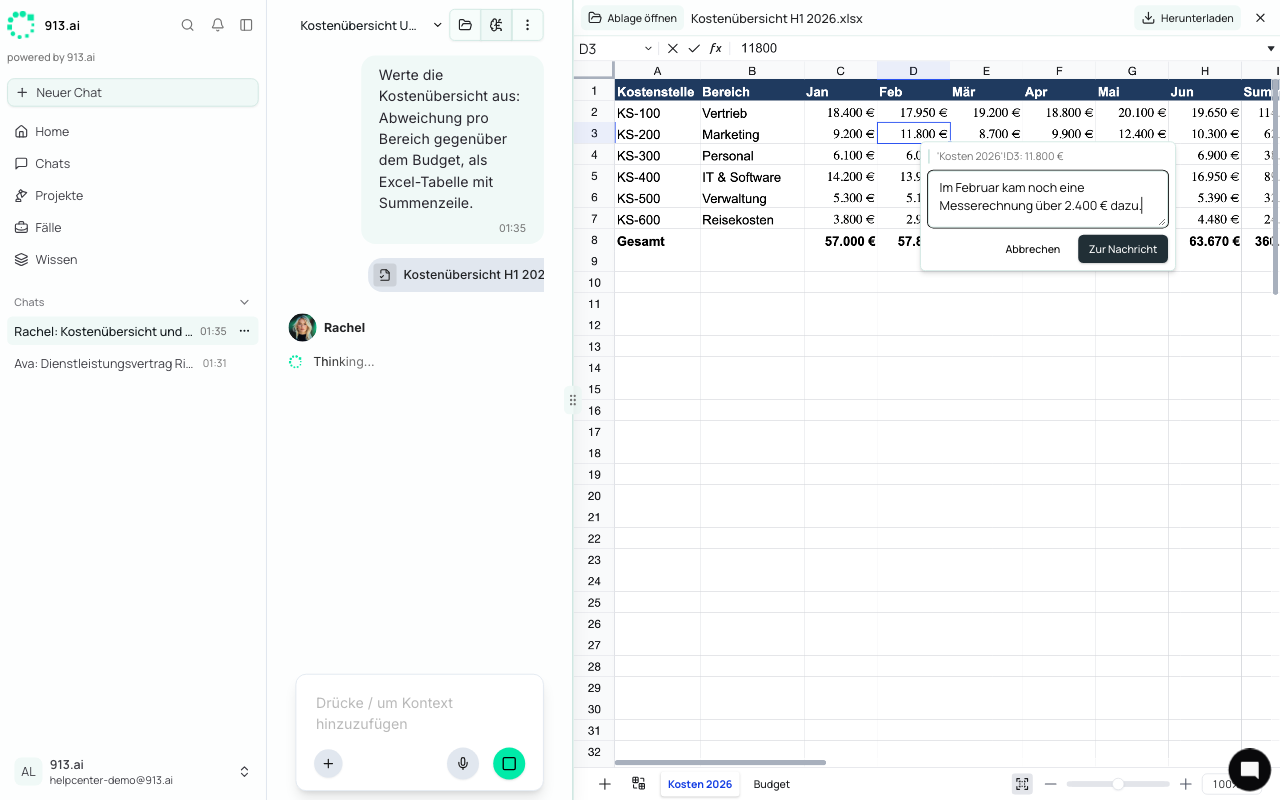
Send your comments
Each comment appears as a card above the message field, with the file name, the quoted passage, and your text. You can now:
add more comments, also across several files, up to 20 per message,
click a card to reopen the file,
remove a card with the X.
Then send the message, with or without your own text. If you don't write anything, the chat sends "Please apply my comments." for you.
Important: If you switch to another chat before sending, your unsent comments are lost.
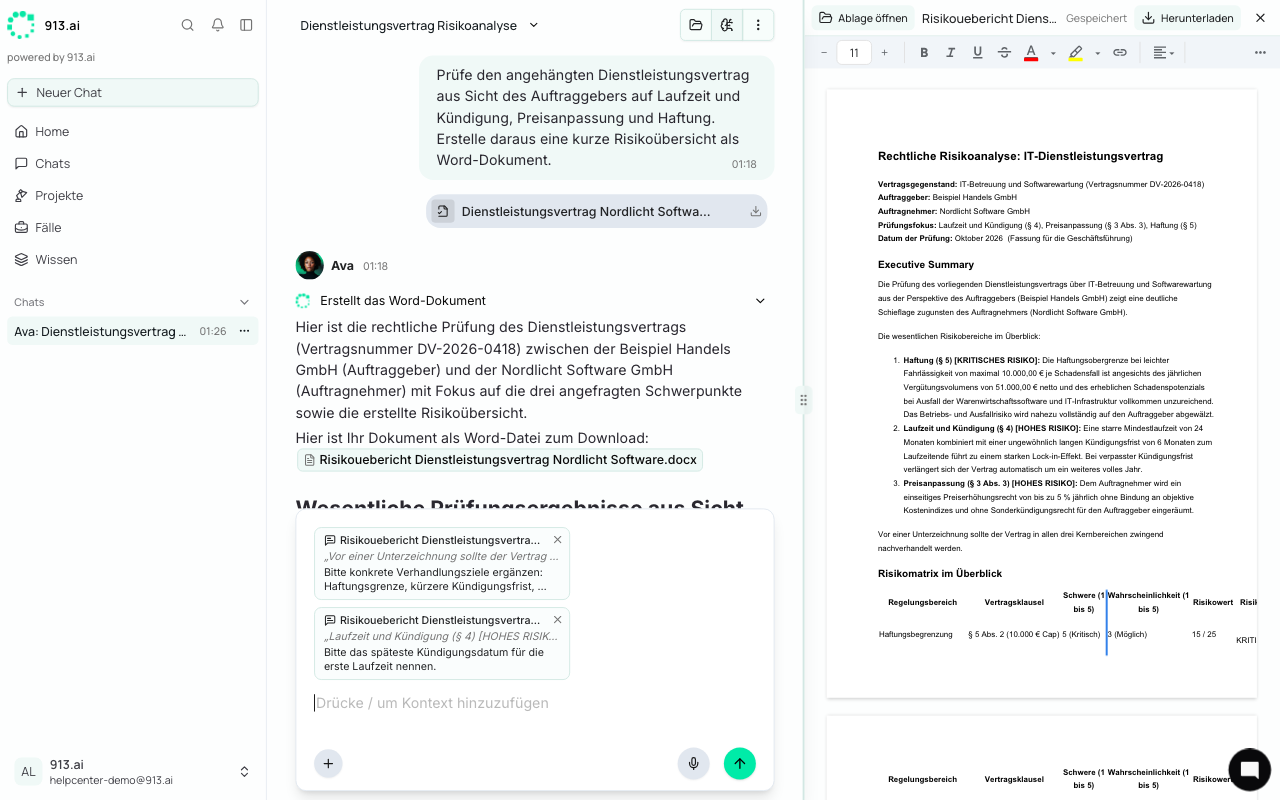
What the agent does with them
It works through every comment, together with anything you wrote in the message.
You get the result as a new file under "Results", for example
Termination letter (2).docx. The previous version stays unchanged, so you can compare both.
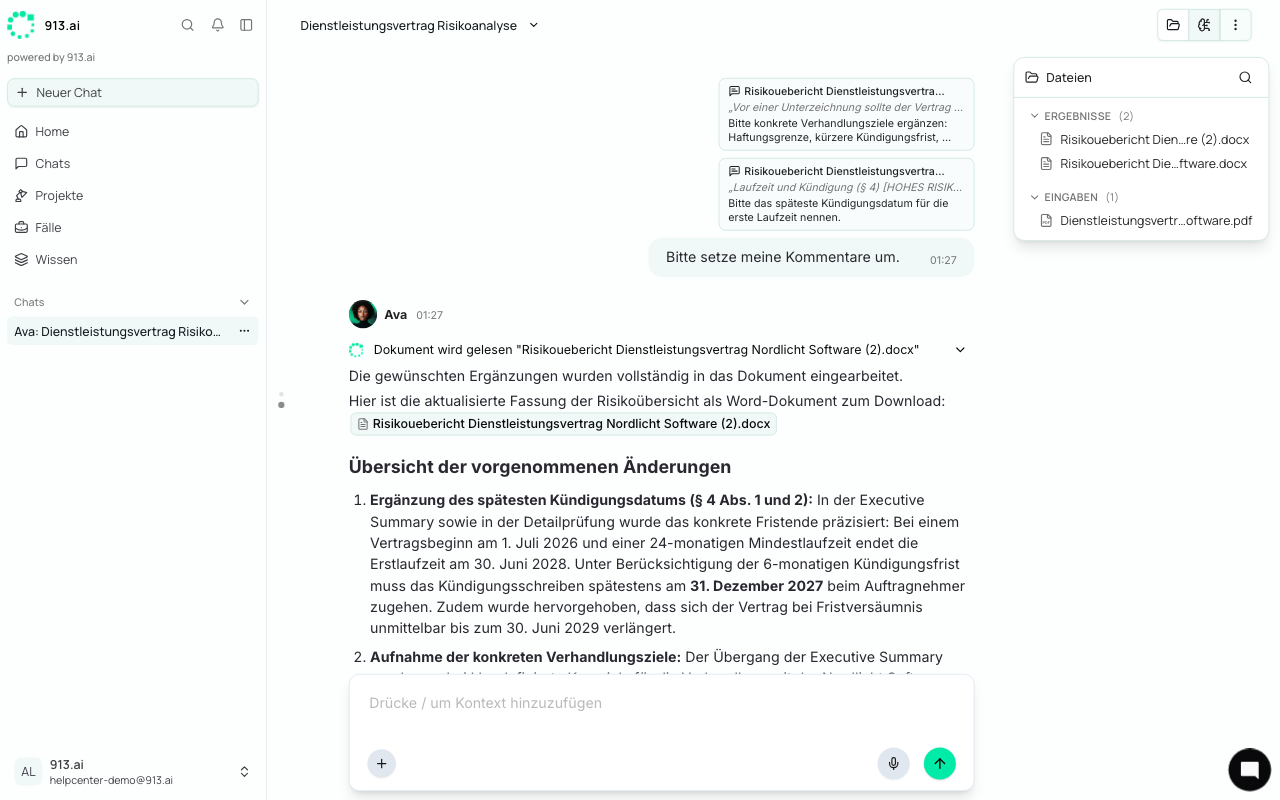
For targeted changes, it edits the existing document instead of rewriting it, so layout, letterhead, and formatting are kept. In Excel spreadsheets, it recalculates totals and formulas.
In group chats, comments always go to the agent, even if you don't mention it explicitly.
Tips
One passage, one comment. The agent handles several short comments more reliably than one long comment about the whole document.
Be specific. "Change the amount to €4,500" works better than "The amount is wrong".
Make small fixes yourself. A typo is faster to fix directly in the document (see Editing Word and Excel Files). The agent then continues with your version.