Viewing Files
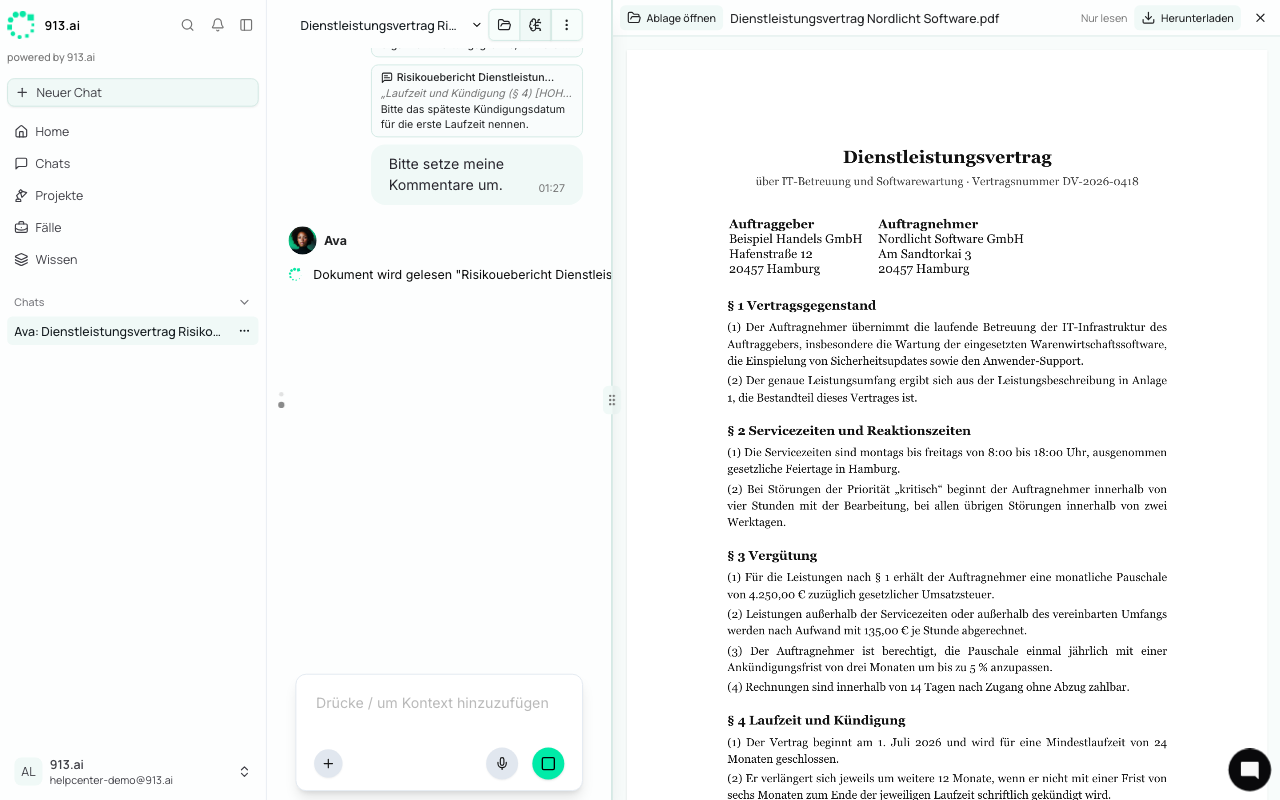
You can open many files directly in the chat, without downloading them. Click a file in the file panel or a file name in one of the agent's replies. The file opens to the right of the chat, so you can see the document and the conversation side by side.
Which files you can open
File type | How it's shown | Editing |
|---|---|---|
Word ( | Document with a formatting toolbar | Yes, see Editing Word and Excel Files |
Excel ( | Spreadsheet with a formula bar | Yes, see Editing Word and Excel Files |
Excel with macros ( | Spreadsheet | Read-only |
CSV ( | Spreadsheet | Read-only |
PDF ( | All pages in one scrollable view, text can be selected | Read-only |
Markdown ( | Formatted text | Read-only |
Images ( | Image | Read-only |
For other file types (for example older .doc/.xls files, PowerPoint, or ZIP), you'll see the message "No preview available for this file type." and a Download button.
You can also comment on read-only files. This is useful when you want to point the agent to a specific passage in a PDF.
The bar above the file
Open file panel: Shows the file list on the left, on top of the file. Use it to switch quickly to another file. Click outside the list to close it.
File name and save status (Word and Excel only, see Editing Word and Excel Files)
Download
X ("Close file")
Adjust the width
There's a handle between the chat and the file. Drag it left or right to give the file more or less space.
When the file view closes
The file closes automatically
when you send a message, because the reply usually brings a new version, and
when you switch to another chat.
Don't worry: unsaved changes are saved first.
If a file won't open
If you see "The file could not be opened.", the file is usually damaged or saved in an unusual format. Use Download to save it and open it in Word or Excel. You can keep working in the chat as usual.