
Mentioning Files in a Message
When a chat has lots of files, it helps to tell the agent exactly which one to use. That's what the “/” menu is for.
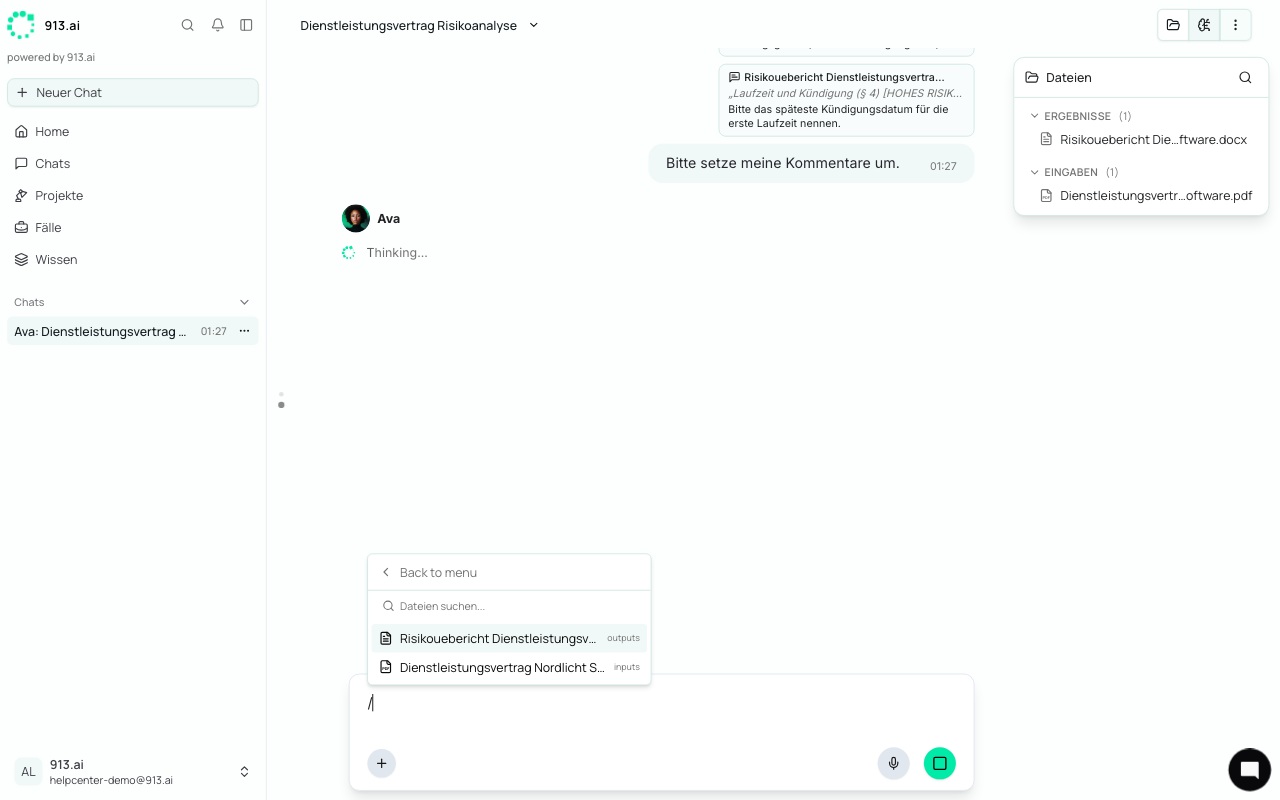
How it works
Type / in the message box (or click + and then Add Context).
Select Files in this chat.
Search for the file name in the “Search files...” field and select the file.
The file appears as a chip in your message. Add your request and send it.
To go even faster, keep typing right after the /, for example /Costs. Matching files from this chat are then suggested first.
Use the arrow keys to move through the menu. Press the right arrow to open a submenu, and the left arrow or Backspace to go back.
Examples
Compare /Service Agreement Northern Light Software.pdf with /Invoices Q3.csv: Do the flat fees we were billed match the contract?
Use the structure of /Cover Letter Template.docx to write a reply to the customer.
Good to know
The menu shows your uploads (Inputs) and the agent's output (Results).
The “/” menu isn't included in every plan. If you don't have it, you'll see an upgrade notice instead. In group chats, you can always use it.
The agent knows every file in the chat, even if you don't mention it. Mentioning a file just helps it pick the right one when there are many similar files.