
913.ai Word Add-in Help Guide
This guide explains how to install and use the 913.ai Word Add-in. It will help you understand the basic features, how to chat with AI agents inside Word, and how to insert AI generated content directly into your document.
1. How to Install the 913.ai Add-in in Word
Follow these steps to install the add-in:
Open your Word document.
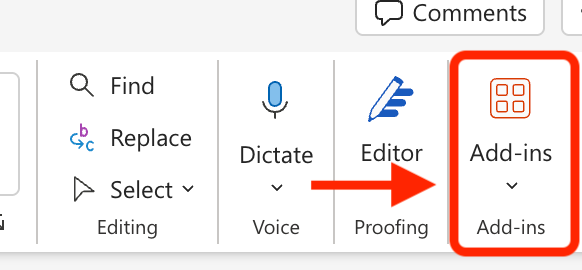
Click on the Add-ins option in the Word toolbar.
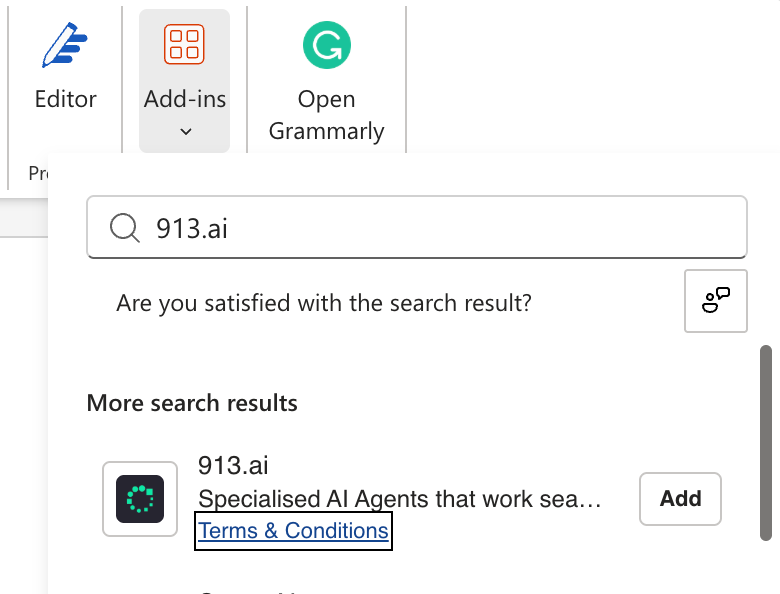
Use the search bar and type 913.ai.
Click Add to install the plugin.
After installation, the 913.ai icon will appear in your Word toolbar.
Click it and log in using your 913.ai credentials.
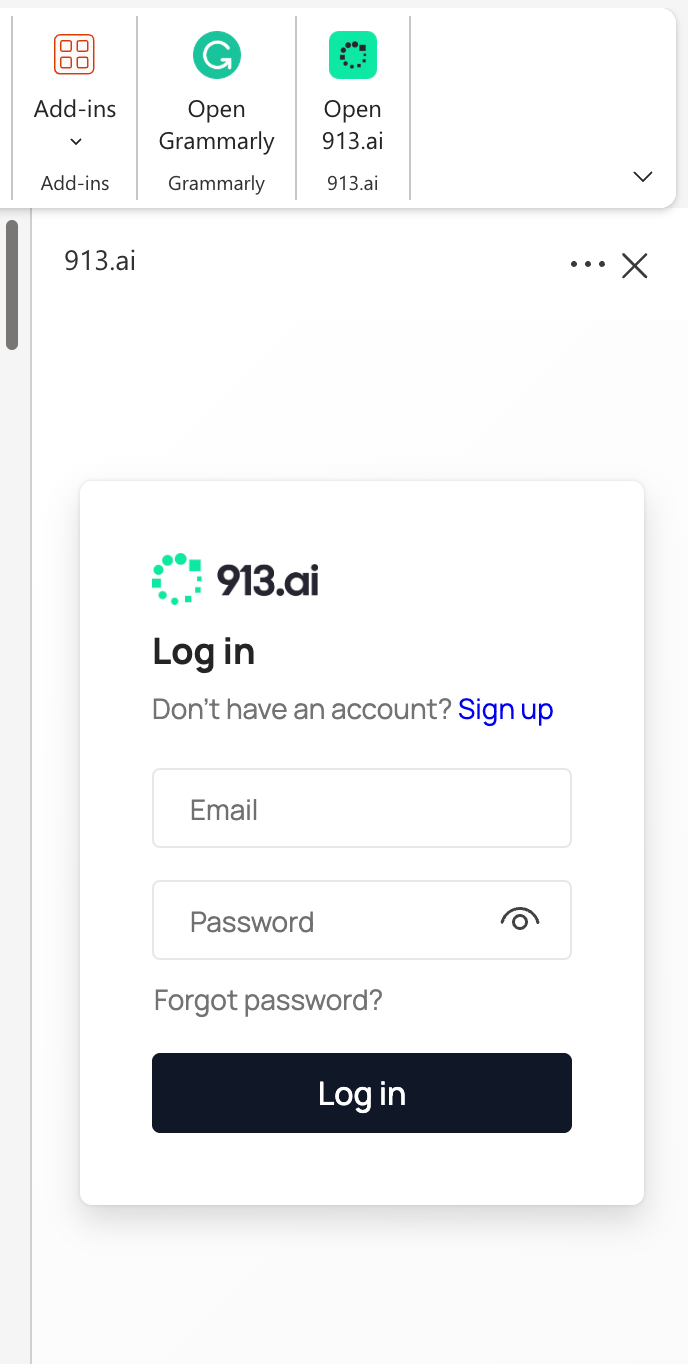
Once logged in, you can start using 913.ai directly inside Word.
2. Basic Overview of the Add-in
The 913.ai Word Add-in works similarly to the main 913.ai platform.
Start a New Session
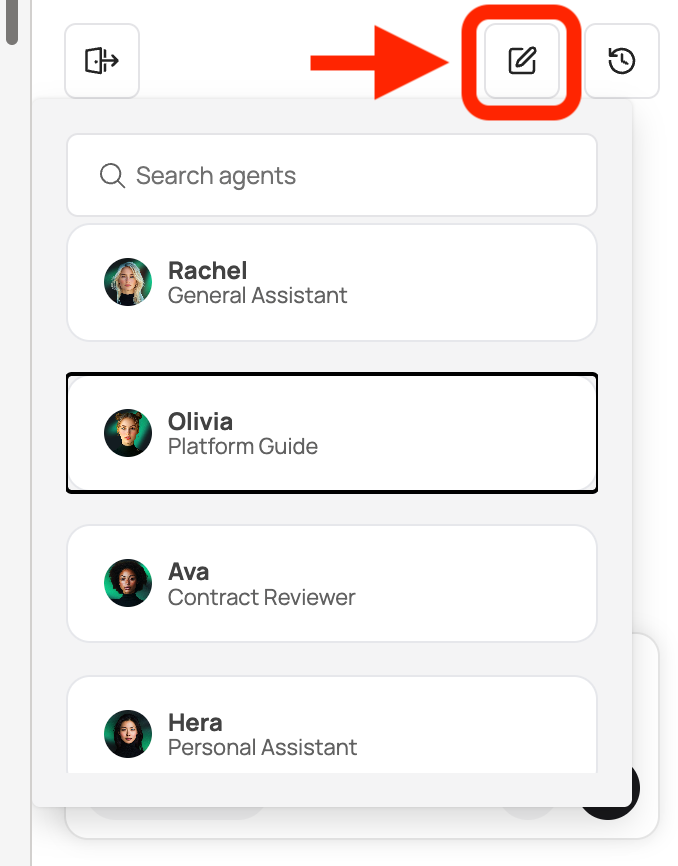
Click on New Session at the top right.
Choose any agent you want to work with.
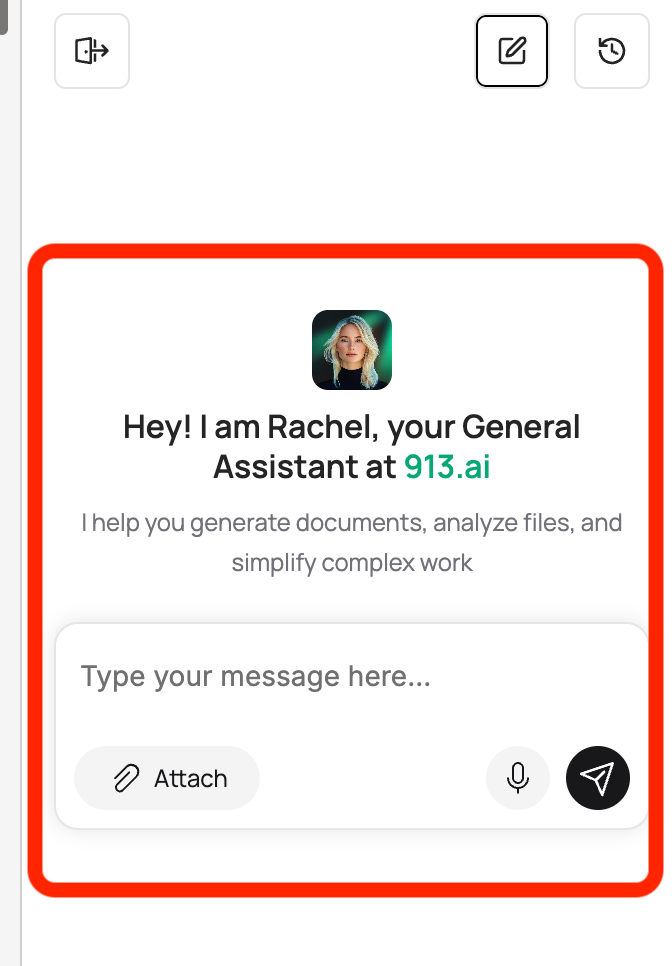
Chat With the AI Agent
Type your message in the chat field.
You can also attach files or record voice messages.
Send your message to the agent and wait for the response.
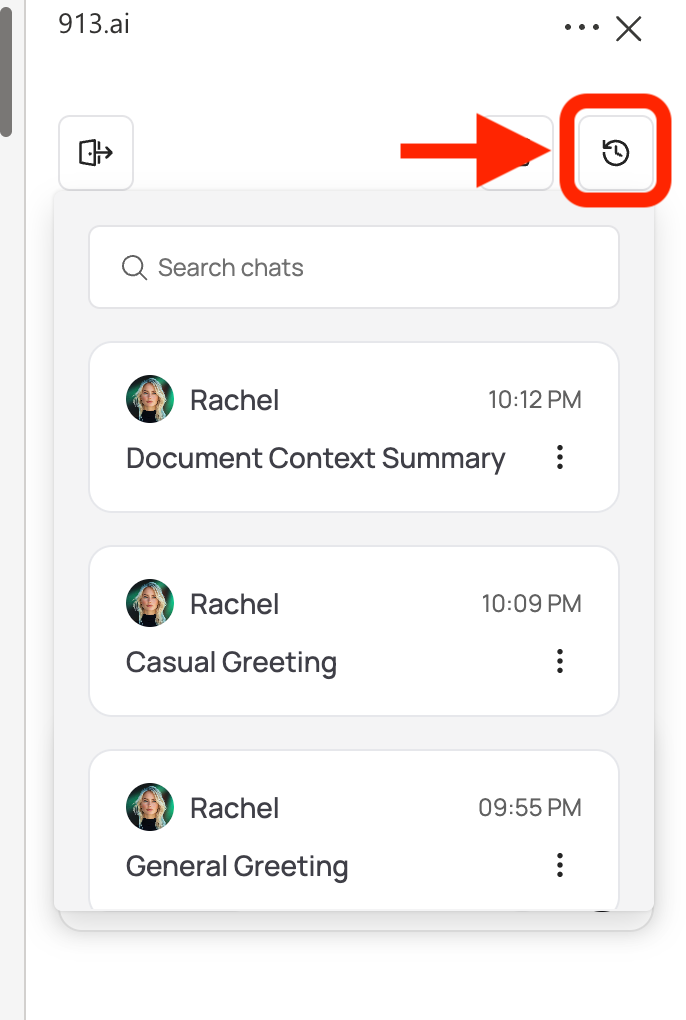
View Chat History
Click on the History option at the top right.
You can see all your past chats.
You can also access chats created on the main platform.
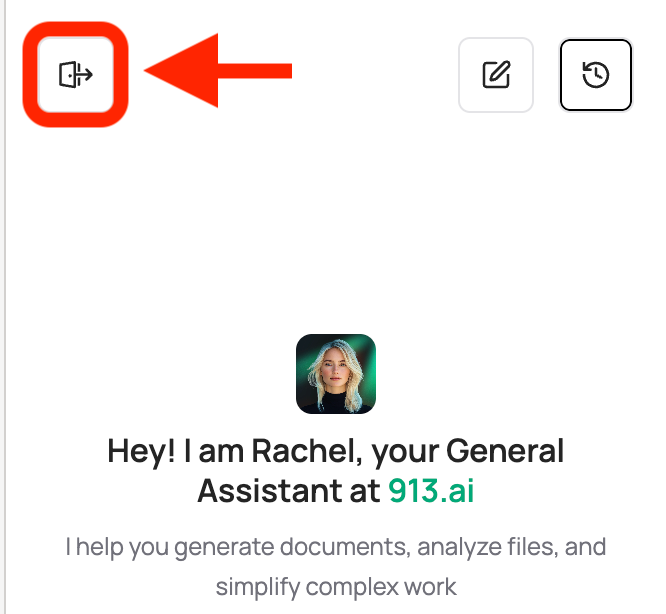
Log Out
Click on Log out at the top left of the add-in.
3. Working With Your Document Using the Add-in
You can use the add-in to ask questions or improve parts of your Word document.
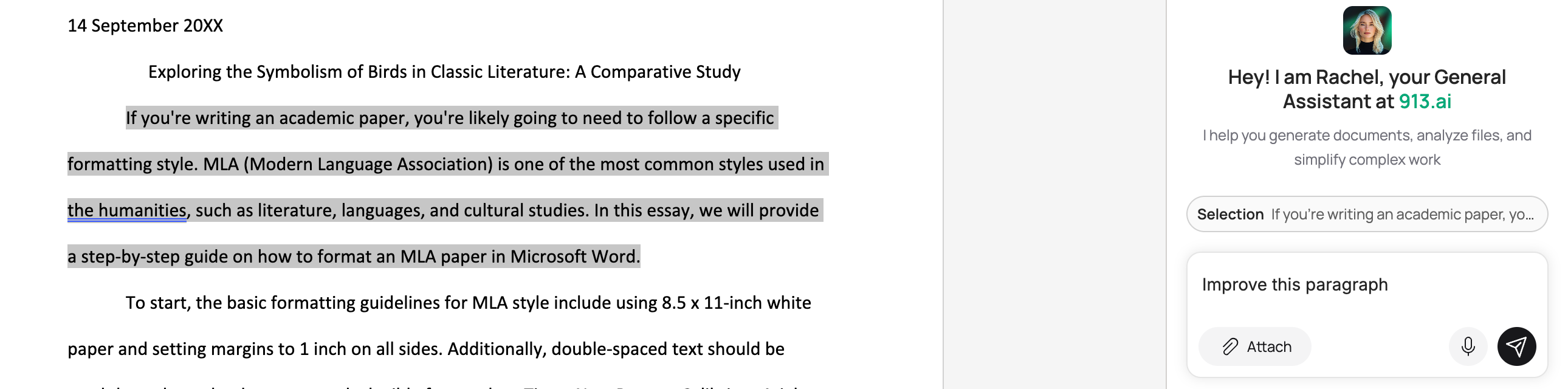
Ask About Selected Text
Select the part of your document you want to ask about.
Go to the chat and ask your question.
Example: “Improve this paragraph.”
Example: “Summarize this section.”
Example: “Rewrite this in a formal tone.”
Insert AI Responses Into Word
When the agent gives you an answer, you can add it to your document in two ways:
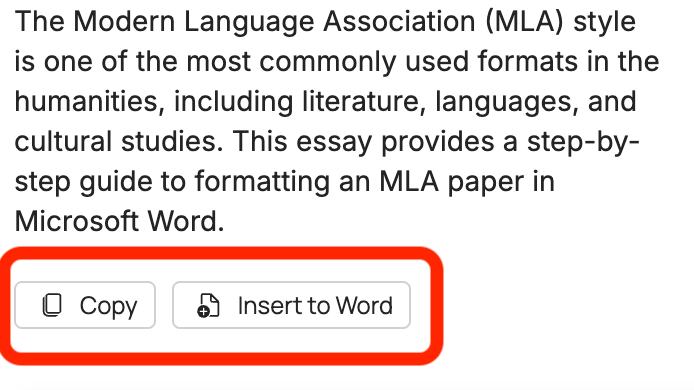
Click Insert to Word to place the response directly where your cursor is or replace the selected section.
Or copy and paste the text manually if you prefer.
4. What You Can Do With the Add-in
Draft new content
Improve writing
Summarize selected text
Ask questions about your document
Generate ideas
Edit specific sections
Work faster without leaving Word
The add-in brings the power of 913.ai directly into your Word workspace so you always have AI support beside you.