Manage Chat Organization
As you deploy your AI agents across various workflows, your sidebar can quickly fill up with active threads. To keep your digital workspace organized, clean, and structured, 913.ai provides a comprehensive set of chat management tools.
Last updated 14 days ago
Core Chat Management Tools
To View Chat Management:
1. Hover of the chat you want to reorganize until it highlights in green
2. Click on the three dots and a menu of options will pop up

Pin: Keep your most critical, high-frequency conversations anchored to the very top of your chat list for instant access.
Rename: By default, agents generate a title based on your initial prompt. Use Rename to give your thread a clear, specific title (e.g., “Q3 Vendor Contract Draft”) so it is easy to find later.
Move to Project: Transfer a standalone conversation directly into a designated Project Workspace. Moving a chat to a project securely expands its context, allowing other agents and team members in that project to reference its data.
Archive: Hide completed tasks or historical conversations from your main sidebar view without erasing them. Archived chats preserve the agent's memory and can be retrieved at any time.
Delete: Permanently purge a conversation and its entire history from the platform database.

Finding Past and Archived Chats
As your conversation history grows, you don’t need to manually scroll through your sidebar to find older workflows. The centralized Chats dashboard provides a dedicated search and filtering engine to pull up any thread in seconds.
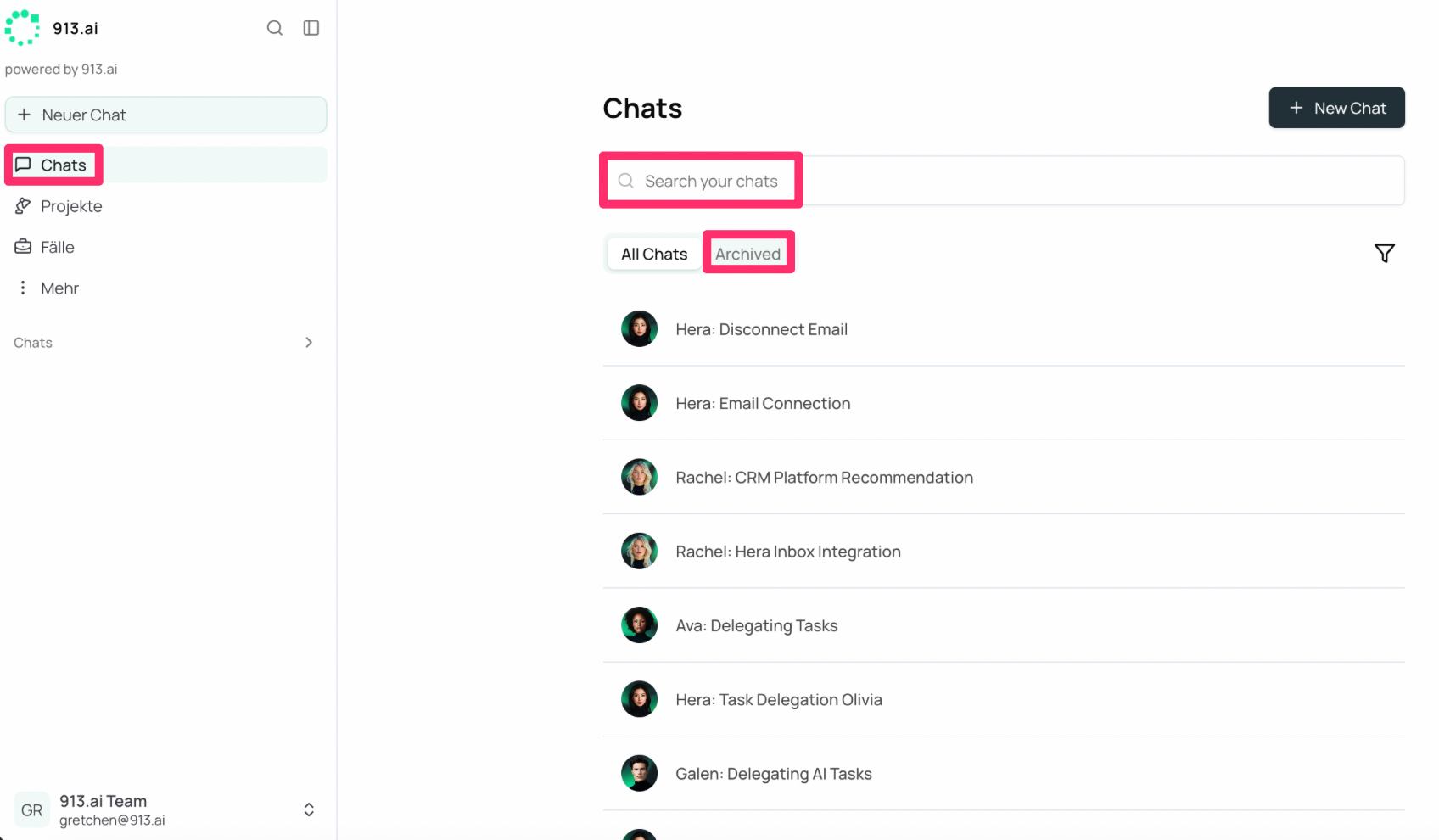
Click on the Chats option in your main left-hand navigation panel brings up a comprehensive main dashboard view. From here, finding specific workflows is incredibly simple:
Search by Project Name or Agent: Simply click into the main "Search your chats" bar at the top of the panel. You can type in specific keywords from the conversation's custom name (e.g., "CRM Platform Recommendation") or type an agent's name (like "Hera" or "Galen") to instantly filter every workflow associated with that digital assistant.
Locating Archived Conversations: If you previously cleaned up your sidebar by archiving a completed task, it isn't gone. Right below the search bar, you can toggle between your active threads under All Chats or click the Archived tab to view, search, and restore your hidden conversation history.
Organization Best Practices
One Topic per Chat: Avoid running multiple business objectives inside a single thread. When a task changes from research to legal review, move it or start a new chat to keep the agent's memory razor-sharp.
Audit Regularly: At the end of every week, take a moment to Archive finalized tasks and Pin active, multi-day priorities to prevent your sidebar from getting cluttered.