Manage Tasks Within Chats
Typing prompts manually every single day is a thing of the past. By leveraging the built-in task engine, you can build custom automations, establish a favorite shortcut deck, and distribute repeatable operational workflows straight to your entire organization.
Last updated 14 days ago
Pinning Favorites to Your Shortcuts Panel
As seen in the image below, your main chat dashboard features a quick-access shortcut zone directly underneath the conversation bar. While standard templates like Summarize and Compare documents live here by default, clicking on Pick a task + opens up your full macro command center.
By saving workflows to your account, you can hand-pick your most frequently used prompts to live directly on your dashboard. This lets you initiate core professional operations in a single click the moment you log in.
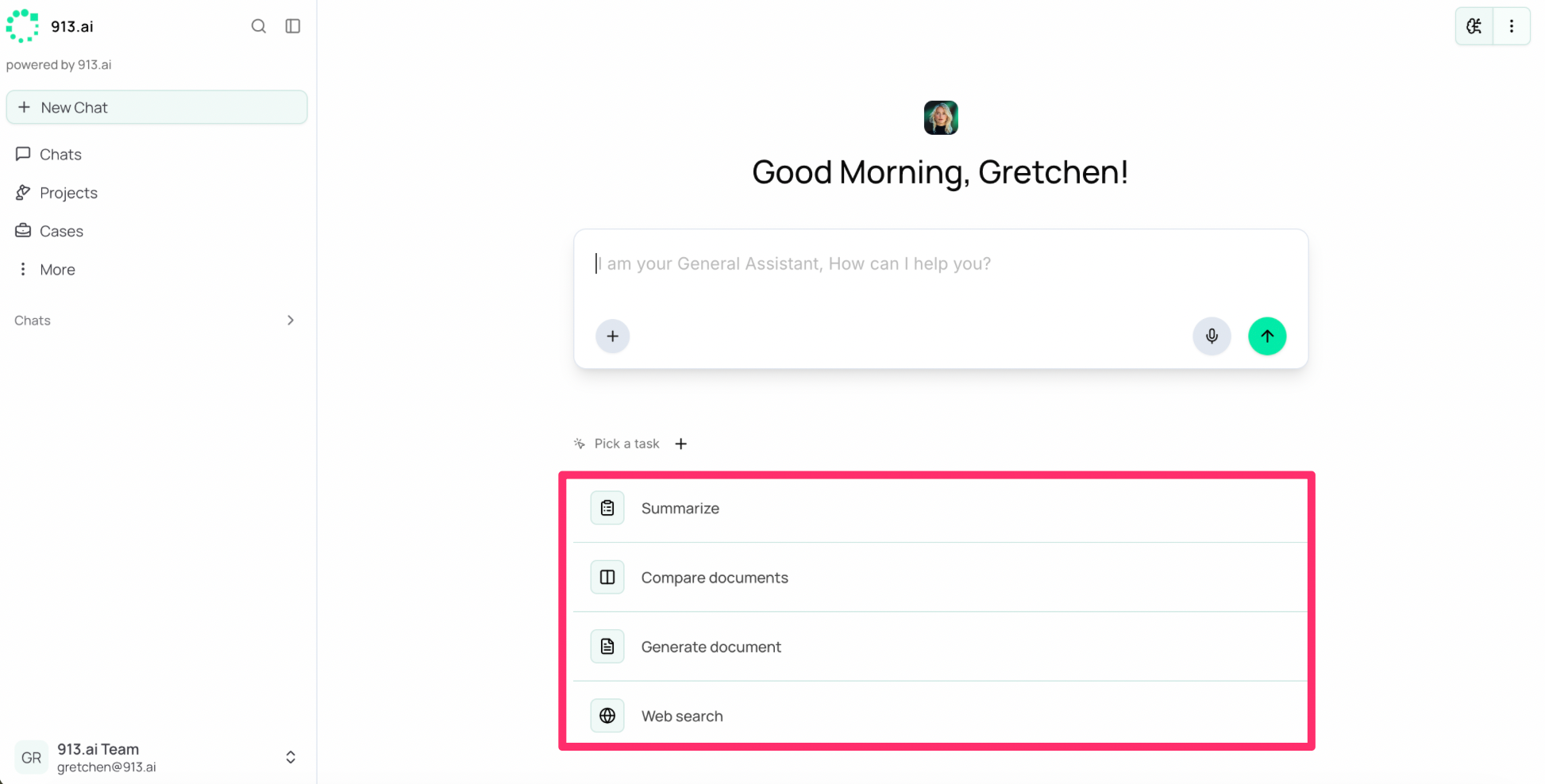
Once you have created a task, simple click on the task and it will populate the prompt in your text box!
Creating Custom, Repetitive Tasks
If standard out-of-the-box operations don't completely cover your company’s unique needs, you can build your own parameters from scratch:
Click
Pick a task +to open up the central task hub.

Under the Saved Tasks dashboard tab, click on the
New Taskbutton.

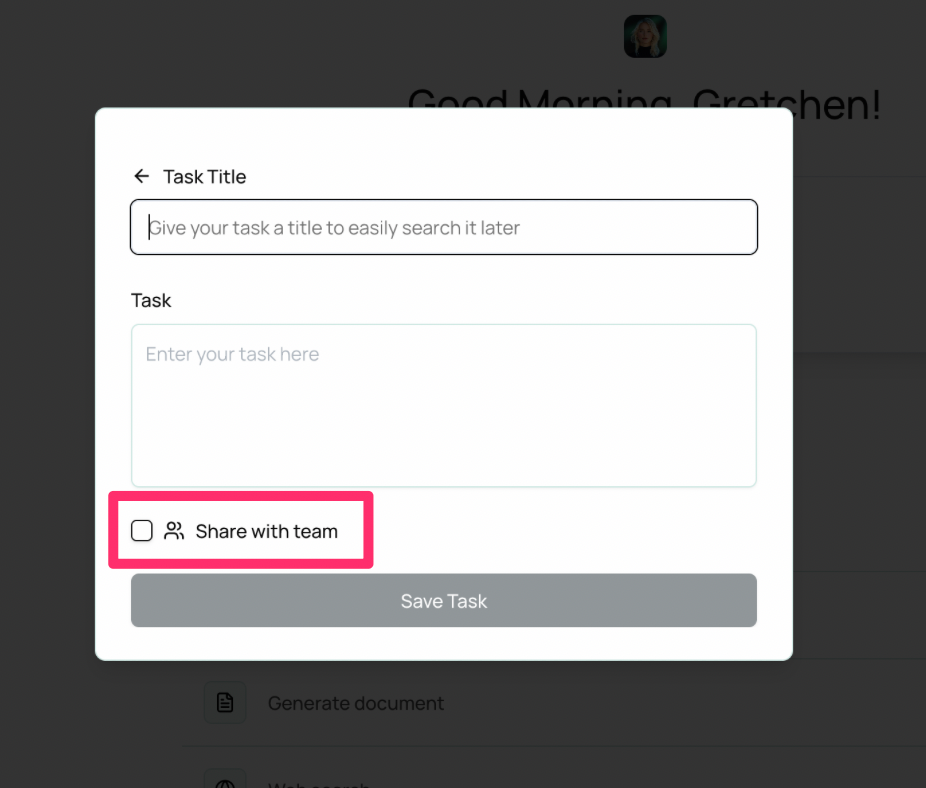
This triggers the task builder seen in. Give your template a searchable name (e.g., "Weekly Compliance Audit Report") and draft the exact analytical guidelines you want the AI to run in the main Task input window.

Click
Save Taskto lock it in.
Scaling Operations: Sharing with Your Team
The task builder includes a built-in collaboration guardrail. Simply toggle the Share with team checkbox before saving your customized script. Once shared, your team members can instantly pull up and pin that exact task onto their own dashboard shortcut menus, establishing operational consistency across your company.
Set It and Forget It: Automated Scheduling
The true peak of hands-off automation lies in programmatic execution. By toggling over to the Scheduled Tasks tab, you can view ongoing routines or click Schedule a task to place an instruction on a recurring loop.

For example, you can set an active, Daily operational loop like a "Daily Morning Briefing". The platform automatically runs your custom prompt at a specified time every single day—pulling relevant metrics, parsing active projects, and synthesizing data without requiring you to manually trigger it yourself.